Account - API - Bulk API Upload
The Bulk Upload feature on TowerCoverage.com will allow you to complete the CSV template and upload it into the system. When the file is uploaded, it will submit each row of the files as a call to the API server and enter the data into the EUS Data on your account. You will also receive an EUS email for each row as well as a data push to your billing system if you have the EUS API information in your account.
You can navigate to this feature by going to Account >> API >>Bulk API Upload.
Bulk Upload Template Values
When All columns are filled out correctly with the below parameters, you will need to remove this instruction sheet and save the template page as a .csv file. You can then upload it into your account.
MultiCoverageID
This is a required field and can be located in the URL of the Data Collection Map that you wish to use for the End User Submission.SubmissionID
This column can be left blank if you are adding new data. If you wish to Update current data, you can either download your customer data CSV or open the submissions individually that you wish to update and get the ID from the URL of the customer entry.FirstName
This is required and can only contain text. No special characters (i.e. $,%,&, /, ect.) are allowed. Special characters will cause the row to be ignored.LastName
This is required and can only contain text. No special characters (i.e. $,%,&, /, ect.) are allowed. Special characters will cause the row to be ignored.Address
This field is required and must be a valid address if you are not providing Lat/Long Coordinates. If Lat/Long is provided, this column must still contain data but will be ignored.City
This field is required and must be a valid entry if you are not providing Lat/Long Coordinates. If Lat/Long is provided, this column must still contain data but will be ignored.State
This field is required, must be a valid entry, and it is suggested that you spell the State out (i.e. Missouri) if you are not providing Lat/Long Coordinates. If Lat/Long is provided, this column must still contain data but will be ignored.ZipCode
This field is required and must be a valid entry if you are not providing Lat/Long Coordinates. If Lat/Long is provided, this column must still contain data but will be ignored.Country
This field is required, must be a valid entry, and it is suggested that you spell the country out (i.e. United States) if you are not providing Lat/Long Coordinates. If Lat/Long is provided, this column must still contain data but will be ignored.Phone Number
This field is required and must only contain phone numbers in one of the following formats. (111)222-3333 1(222)333-4444 1234567890 111-222-3333Email Address
This field is required and must contain a valid format email address (i.e. support@towercoverage.com)How did you hear about us?
Simple Text Only, No return characters or tabs are allowed. Must contain at least (NA or None).Preferred Method of Contact
Simple Text Only, No return characters or tabs are allowed. Must contain at least (NA or None).Best Time to Contact
Simple Text Only, No return characters or tabs are allowed. Must contain at least (NA or None).Comment
Simple Text Only, No return characters or tabs are allowed. Must contain at least (NA or None).Latitude
Must contain a 0 or a value between -180 and 180.Longitude
Must contain a 0 or a value between -180 and 180.Pin Status values
2 = Serviceable 3 = New EUS 4 = No Service 5 = InstalledNote: Custom Pins have unique numbers. Consult the pin chart from "How to prepare your file" under #6 to see your personal applicable pin numbers. 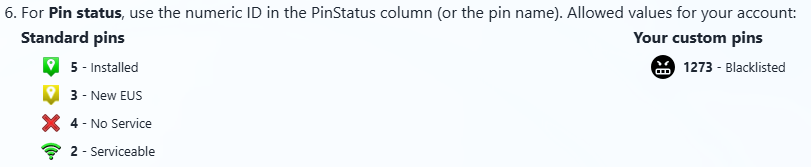
CustComments
Simple Text Only, No return characters or tabs allowed. Must contain at least (NA or None).DownloadSpeed
This field must contain numeric values. It can contain a decimal.UploadSpeed
This field must contain numeric values. It can contain a decimal.IsBusiness
This field is boolean. True = 1 or false = 0 If this record is for a business or residential.Review / Edit Upload Process
If you encountered any data errors during the upload process, you'll be able to review them in the Review Upload section on the features main page. Here you can select the option to make corrections, as well as add and delete rows from the uploaded data set. You can also save your progress to return and make edits later.
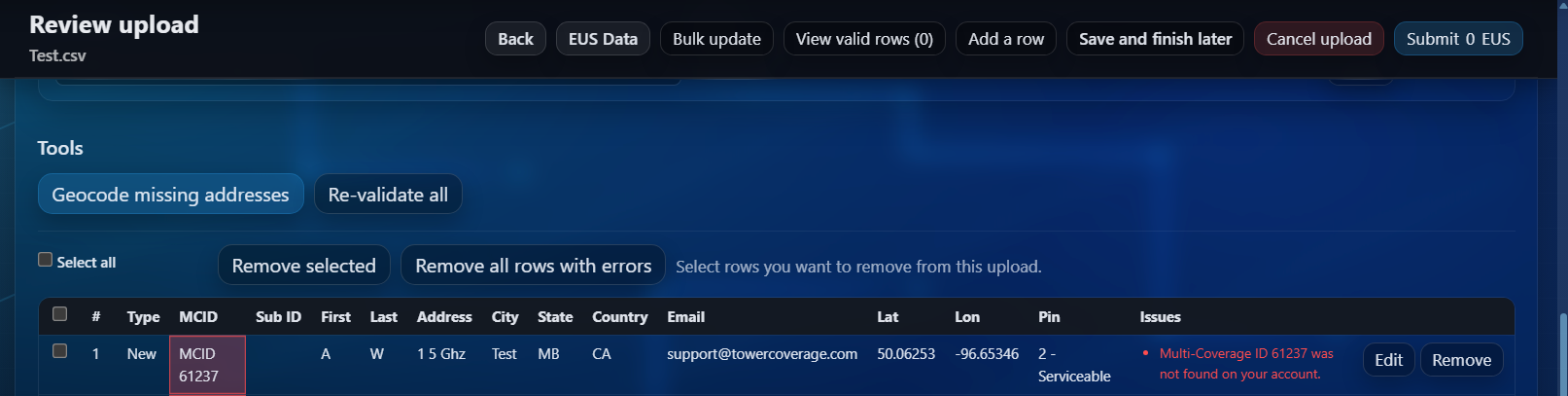
If you've saved your data and you return to the main feature page, you'll see the option to continue the previous upload at the top of your interface.

Each value for every row can be modified from the edit row interface.
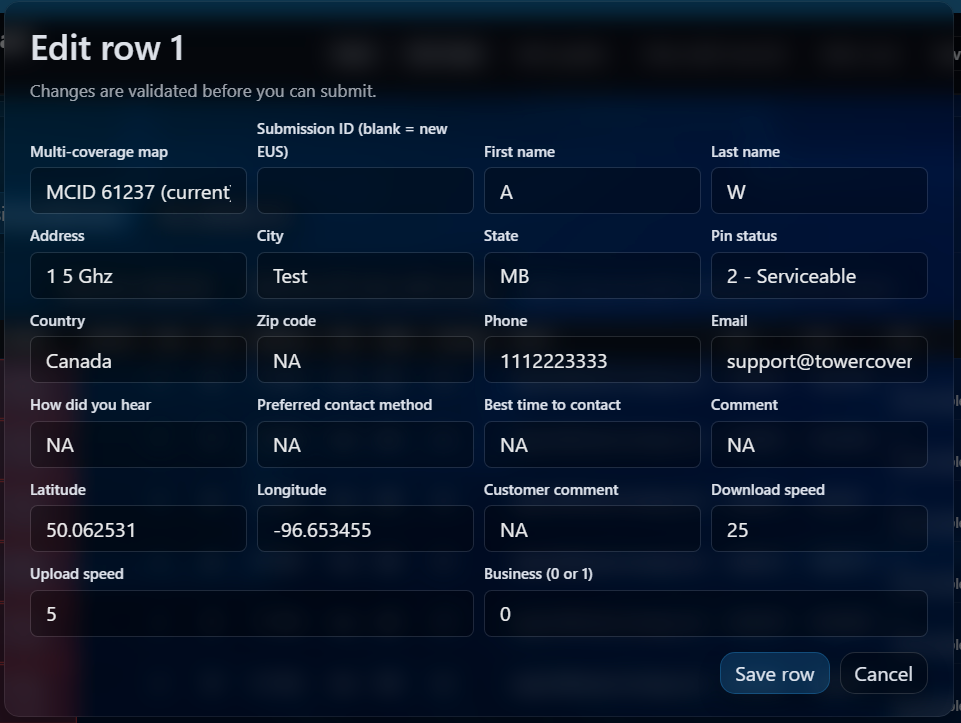
Once the edits are complete, you can save the row and submit your data.